Do you like that the mail account is printed at the top of your email print out?
Do you think that it is acceptable that you cannot choose a different printer if you print your email in the Memo style? You are using your cooperate style in your normal documents. Why don’t you print your email in your own style, too? OutlookPrinter is the solution for your Outlook email print problems!
Easy to use! When you want to print out an email you just click on the OutlookPrinter toolbar and choose ‘Print selection with default template’ and your email will be printed.
Of course you can modify the look and feel of your template. How does OutlookPrinter work? You can customize the way you want to print out your Outlook e-mails. OutlookPrinter works in combination with Microsoft Word. If you want to print out an email then OutlookPrinter sends the email to your Word email template. Then the email is sent to your printer. Your attachments are completely supported. You can choose for every single template if you want to print a list of the attachments only or if the attachments should be printed after the email.
A report will tell you what attachments were printed. You don’t need to modify the format of the message any longer to get an overview over your attachments. This is the usual printout of an E-mail:
 OutlookPrinter is able to print out the same email with a nice template:
 You create or modify your E-mail templates with Microsoft Word with an easy to use interface.
Benefits
- Customize your look of your emails easily.
- Avoid Outlook printing problems.
- Save time and money with an easy to use interface.
- Print only the content of an email you really need
- List the attachments or print them out directly
- Use your corporate style in your emails, too.
- Print incoming e-mails automatically
- Filter by subject or sender address what emails should be printed automatically.
‘OutlookPrinter’ supports of course Exchange accounts, too.
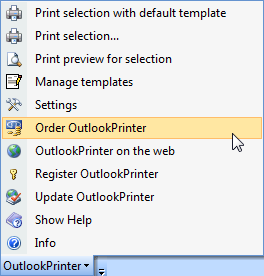 Printing with the default templateTo print out your email click on 'OutlookPrinter' > 'Print Selection with default template'
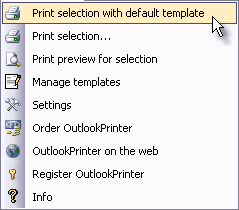 With this step your Word will be opened with the default template. The template word file is filled with the content of the selected email and this new created document is sent to your default printer.Printing with different templatesTo print your emails with a different setting you click on 'OutlookPrinter' > 'Print selection ...'
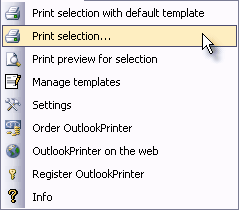 A new dialogue opens asking you what template you want to use:
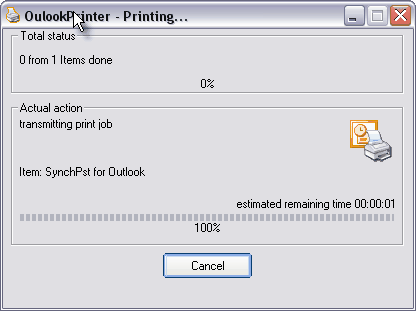
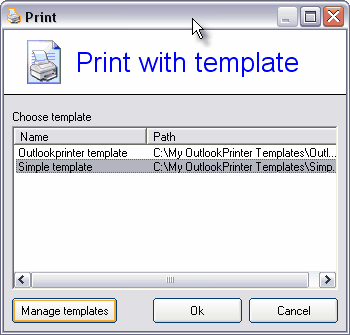 Click on the 'OK' button and the print process will be started. You see the progress in the next dialogue.
 After the print a summary is displayed. Here you can see how many items were printed and what attachments couldn't be printed out because no other application was bound to this file:
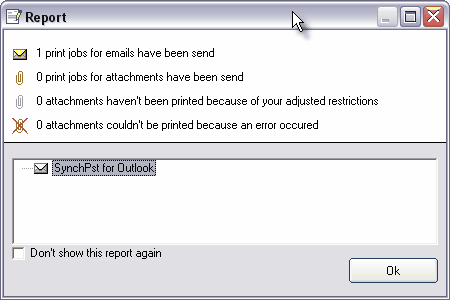 If you don't want want to see this report after every print job you can check the option 'Don't show this report again'.This short tutorial should show you how easy it is to print out your Outlook emails with a customized email template.